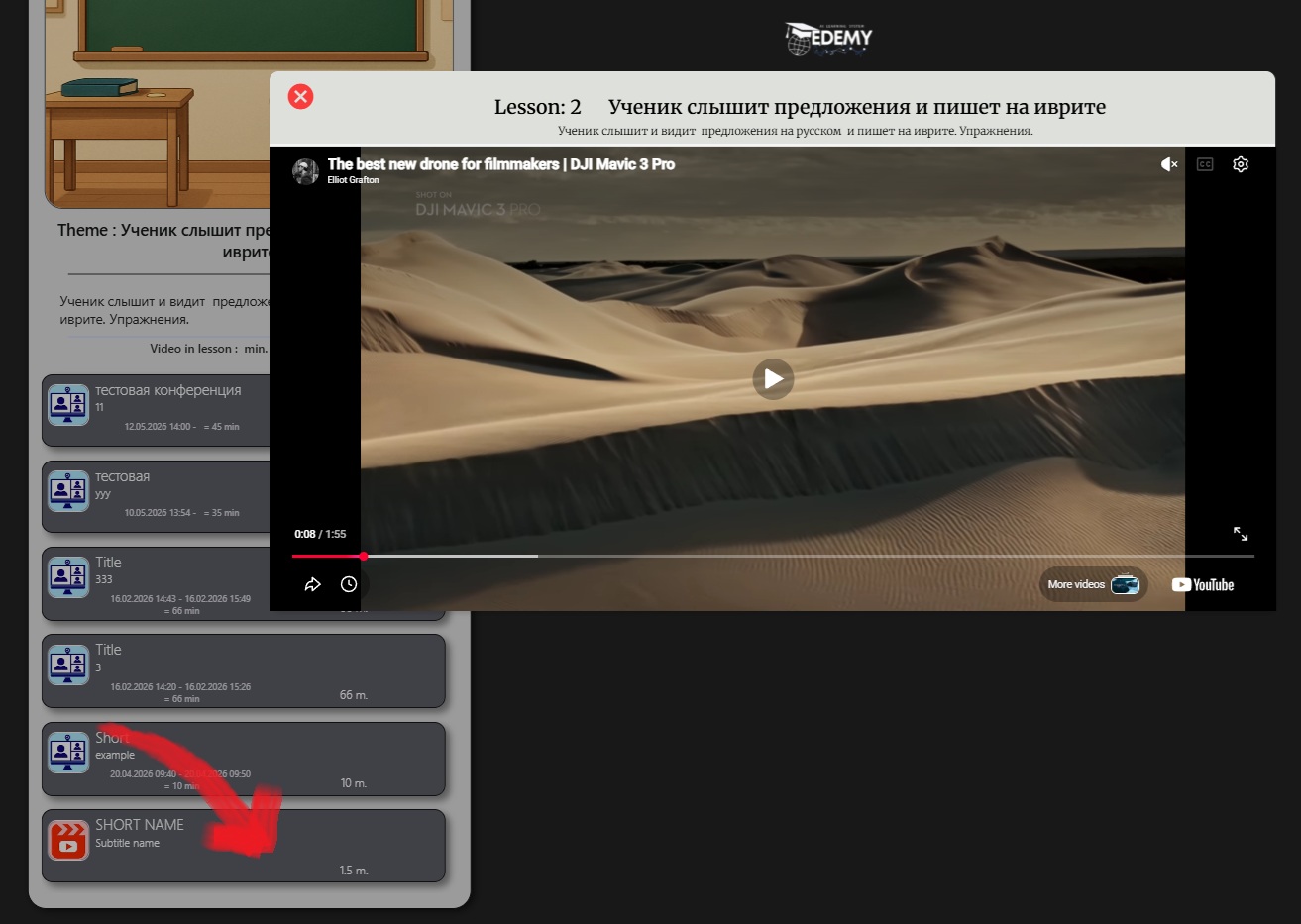



Preparing to Add a Video Fragment
To start entering a new video fragment, you first need to enter course editing mode.
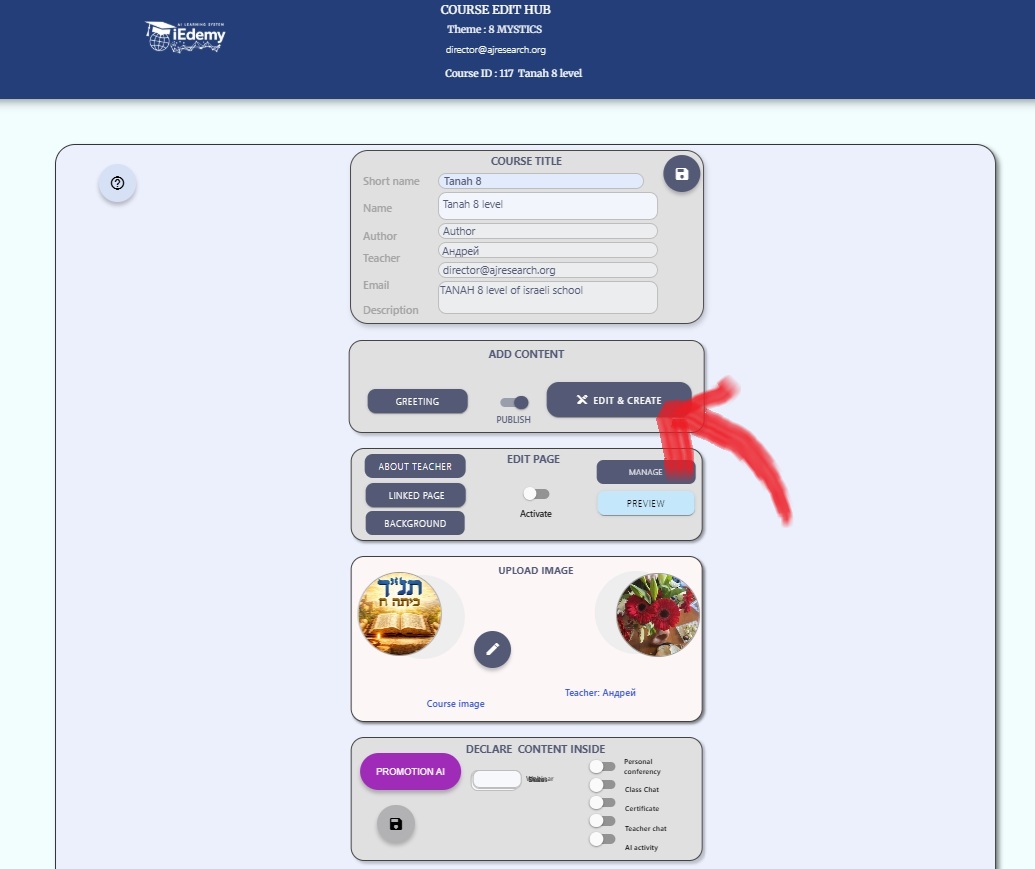
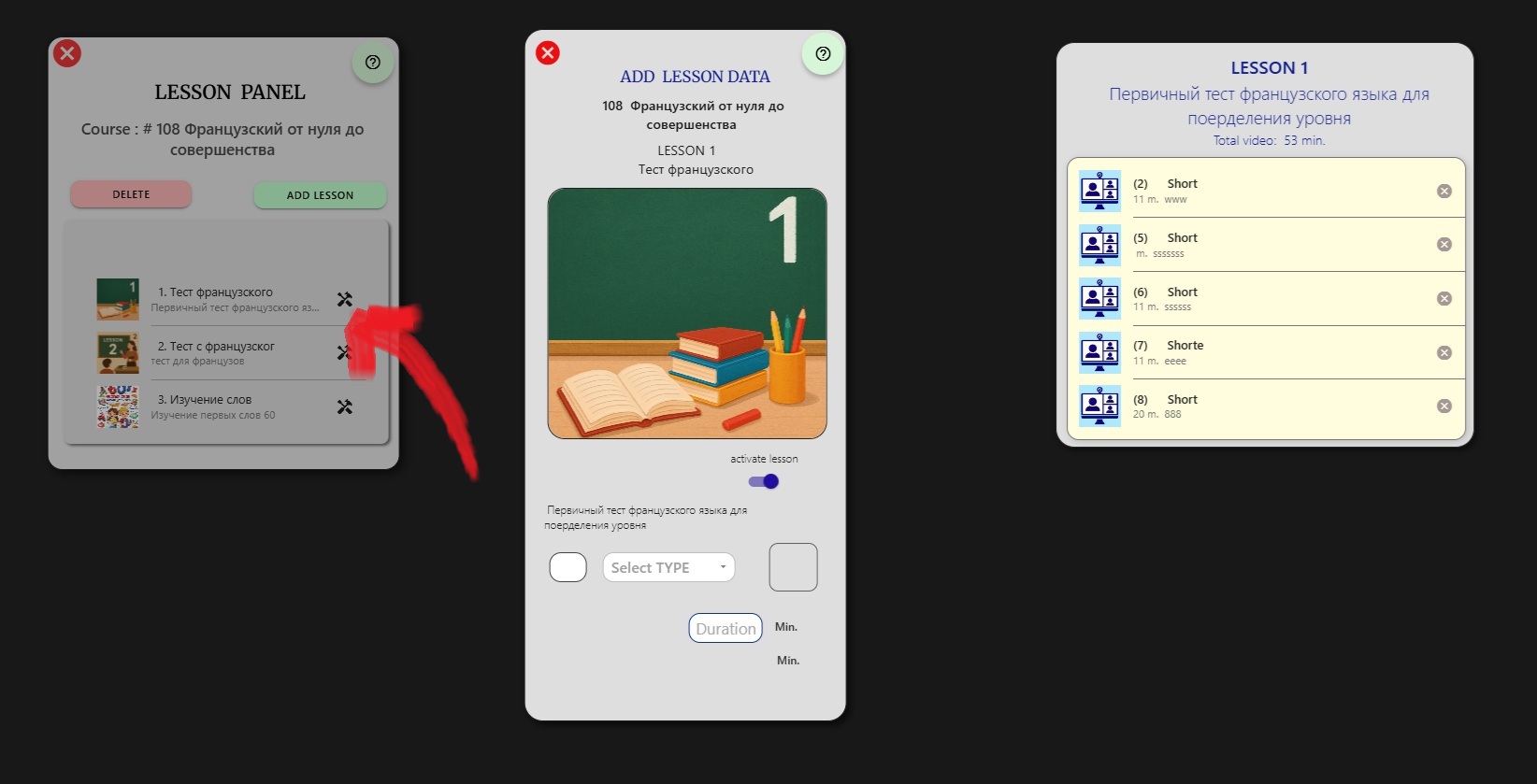
To enter lesson content mode, select a lesson and click the button on the LESSON PANEL. After that, the ADD LESSON DATA panel will open. This is where you add new materials and edit learning materials that were already added earlier.
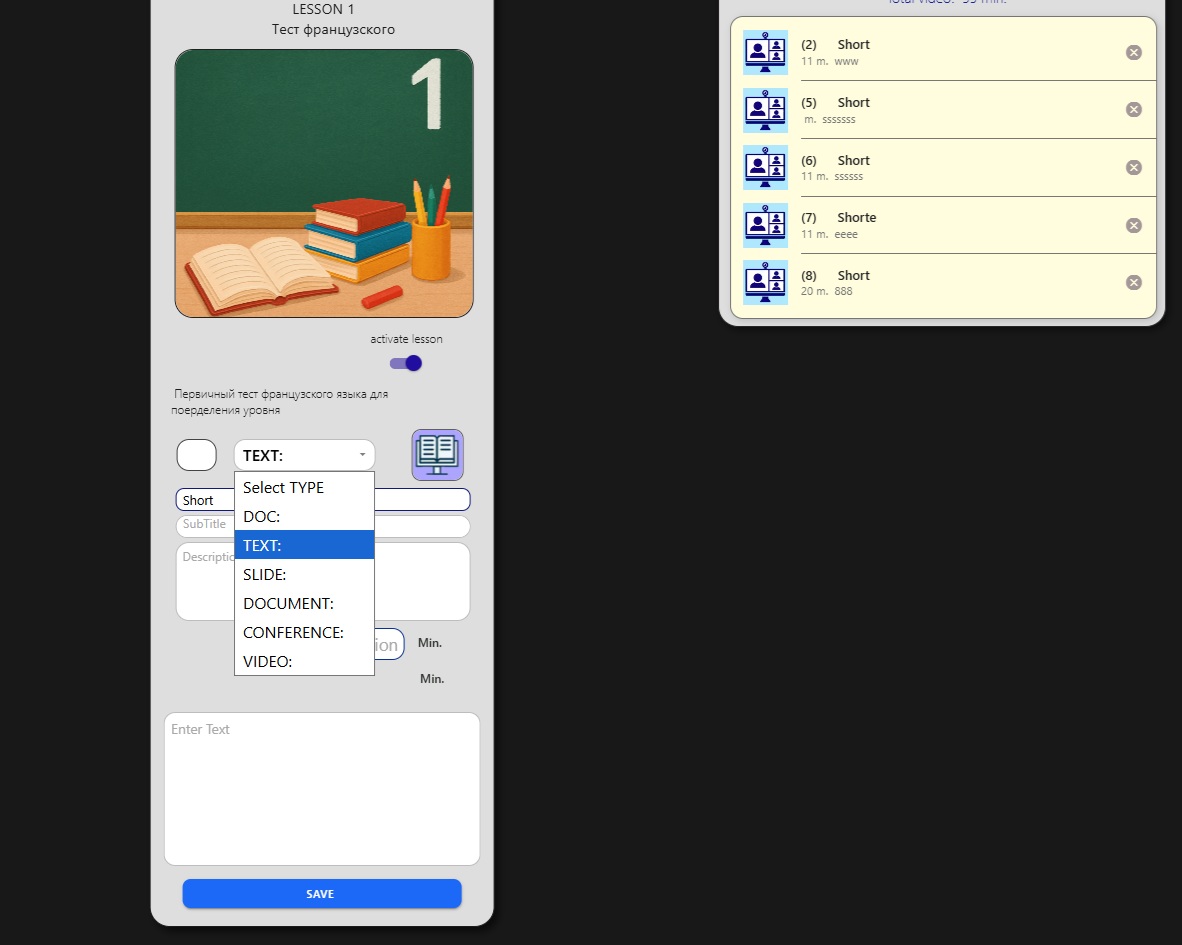
Click the drop-down menu and choose the learning material type, in this case VIDEO.
Filling in the Video Data
In the drop-down menu, choose VIDEO and fill in the video fragment details.
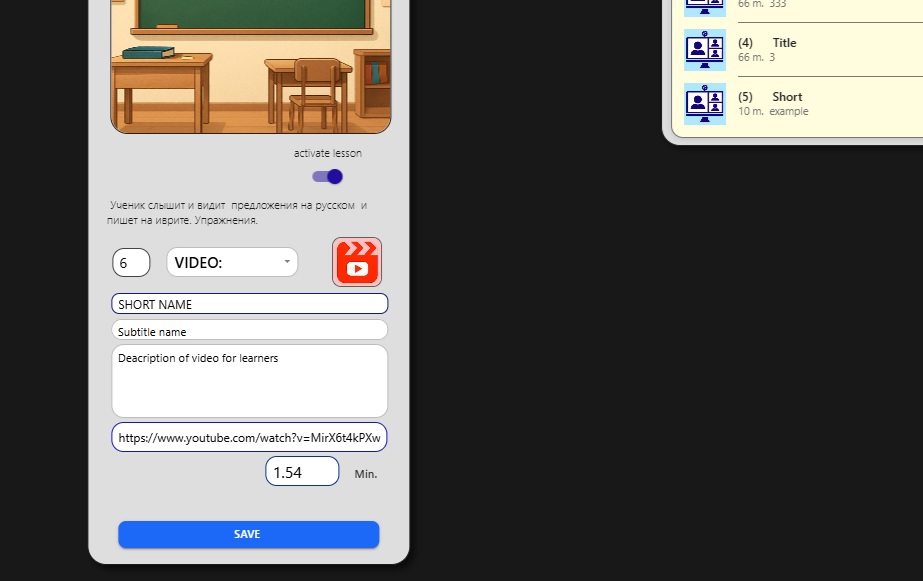
- To the left of the material type, enter its order number inside your lesson.
- SHORT NAME - the short name of the video.
- Subtitle name - the extended name of the video.
- Description - a detailed explanation of the video content.
- Link to video file - a link to the video file on the server, for example YouTube or Vimeo.
- Min of video - the video length in minutes.
After you finish entering the data, click SAVE to save it.
Immediately after saving, the material receives a number and appears in the list on the left.
Editing Saved Material
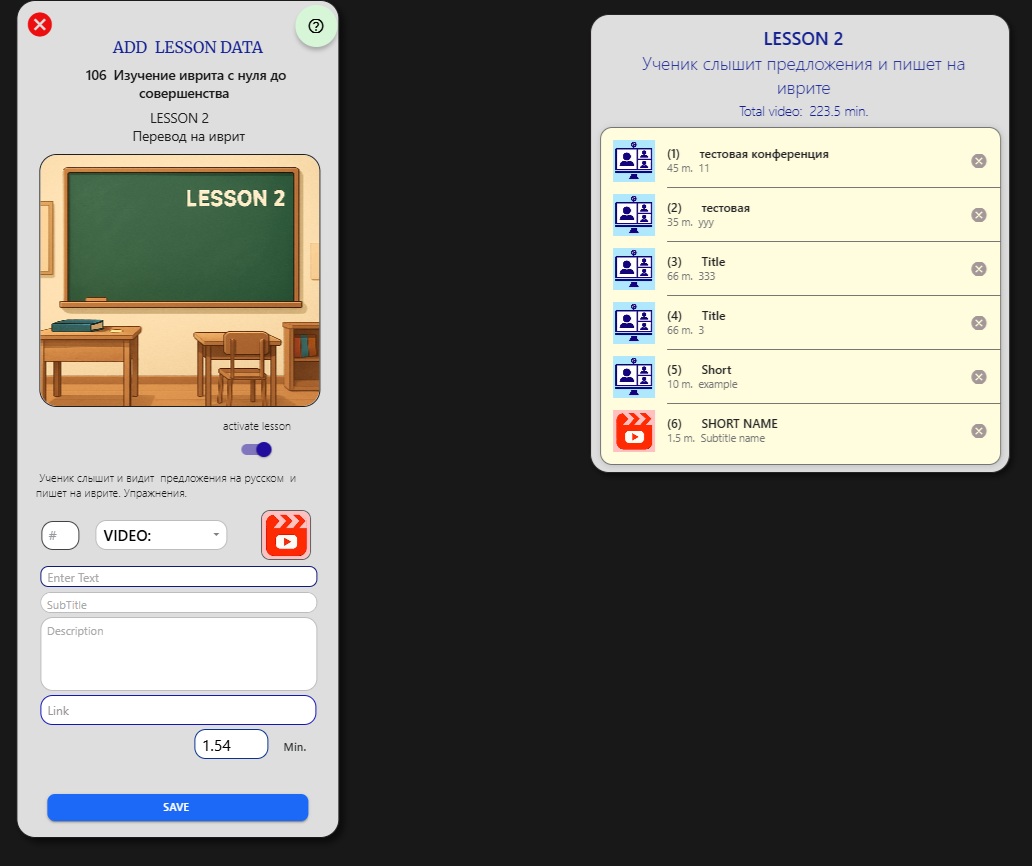
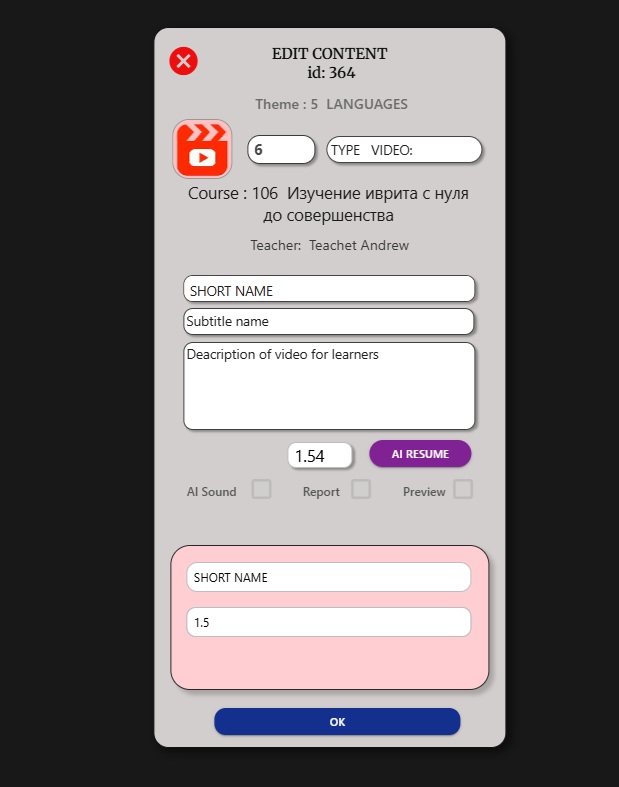
After saving, you can edit your learning material. Click the list on the left and the EDIT CONTENT panel will open, where you can change the learning material data.
Note 1: if you want to change the type of learning material, first delete the existing material and then create a new one.
Note 2: you can change the order of materials in the list by using the field to the left of the material type, for example where the number 6 is shown.
Checking the Video in the Course
Now let us check how the video material appears inside the course. To do this, open the second lesson of the course and click the video panel.
The image shows the opened video panel with the video fragment.